


Windows 11 Home vs Pro: Which Should You Buy in the UK?

Windows 11 Home and Windows 11 Pro look the same and run the same apps. The difference is in the tools for security, remote access and business management. This UK guide explains Windows 11 Home vs Pro in plain English, so you can choose the right licence the first time.
Windows 11 Home vs Pro: The Short Answer
- Choose Windows 11 Home for a personal PC used for browsing, email, streaming, schoolwork and games.
- Choose Windows 11 Pro if you run a business, work remotely, handle client data, or want to run virtual machines.
When comparing Windows 11 Home vs Pro, remember that everything in Home is also in Pro. Pro simply adds extra features on top.
What Both Editions Include
Both editions share the same Start menu, Snap layouts, Microsoft Store, Windows Hello sign-in, Microsoft Defender antivirus, Xbox app and DirectX 12 gaming. Performance for everyday tasks and games is the same, and both receive the same monthly security updates.
What Windows 11 Pro Adds
| Feature | Home | Pro |
|---|---|---|
| BitLocker drive encryption | Device encryption on supported PCs only | Yes |
| Remote Desktop host (connect to this PC) | No | Yes |
| Hyper-V virtual machines | No | Yes |
| Windows Sandbox | No | Yes |
| Join a company domain or Microsoft Entra ID | No | Yes |
| Group Policy editor | No | Yes |
| Maximum RAM | 128 GB | 2 TB |
| Processor sockets | 1 | 2 |
BitLocker: why it matters for UK businesses
If a laptop holding customer data is lost or stolen, full-disk encryption makes that data unreadable. For a business handling personal data under UK GDPR, BitLocker on Windows 11 Pro is the simplest way to protect it. Home offers basic Device encryption only on some hardware and with fewer controls.
Remote Desktop
Windows 11 Home can connect out to another PC, but it cannot accept Remote Desktop connections. If you want to reach your office PC from home, that office PC needs Windows 11 Pro.
Hyper-V and Windows Sandbox
Developers, IT staff and anyone testing software can run full virtual machines with Hyper-V, or open a throwaway Windows Sandbox to try an unknown file safely. Neither is available in Home.
Windows 11 Home vs Pro for Gaming
In the Windows 11 Home vs Pro choice, there is no gaming advantage to Pro. Games run identically on both editions, so gamers can choose Home unless they also need the business features above.
Can I Upgrade From Home to Pro Later?
Yes. You do not need to reinstall Windows or lose your files:
- Buy a Windows 11 Pro product key.
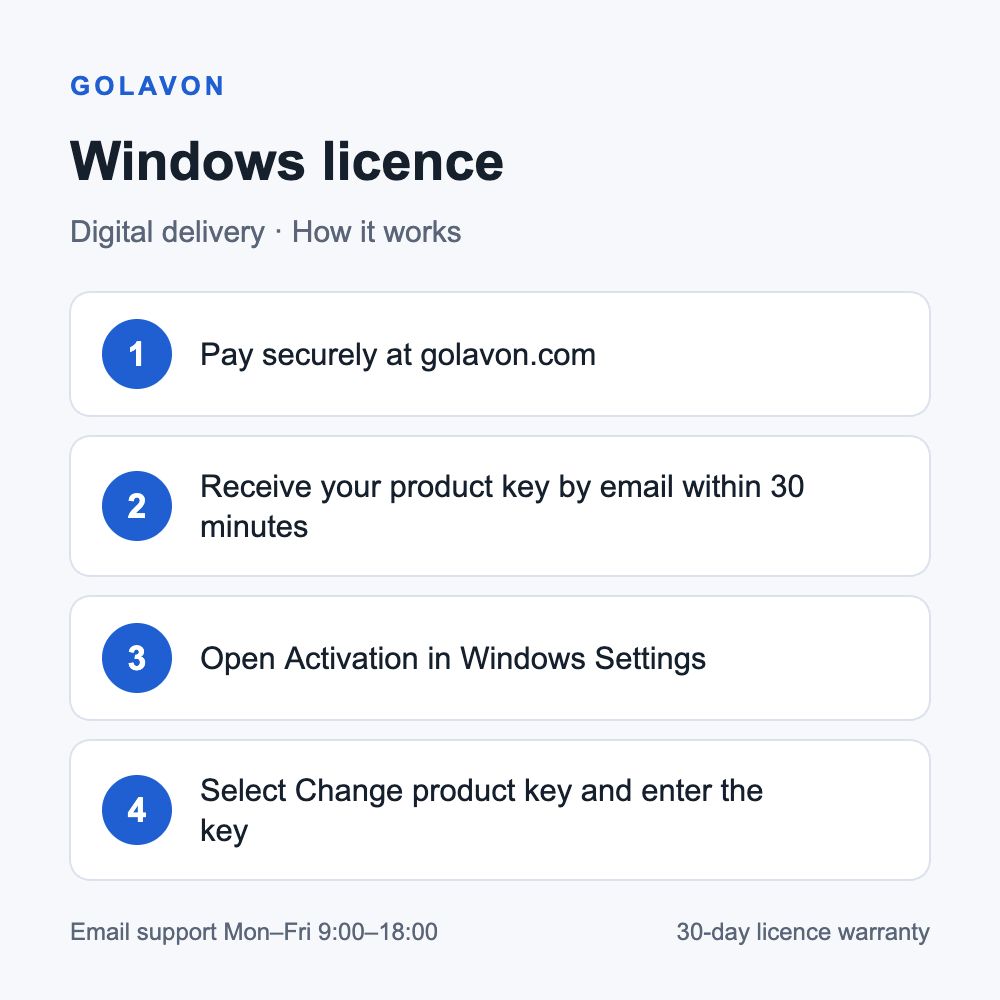
- Open Settings > System > Activation.
- Select Change product key and enter the Pro key.
- Windows upgrades to Pro, restarts, and keeps your apps and files.
Going from Pro back to Home requires a clean install, so if you are unsure, Pro is the safer choice.
Which Windows 11 Licence Should You Buy?
Still weighing up Windows 11 Home vs Pro? For most home users, Windows 11 Home covers everything. For sole traders, small offices, remote workers and anyone who stores client data, Windows 11 Pro is worth it. At Golavon, Windows 11 Home and Pro currently cost the same, so Pro gives you the extra features at no extra cost.
Both licences cover one PC. Your product key and activation steps arrive by email within 30 minutes of payment. Before buying, check that your PC meets the Windows 11 requirements, including TPM 2.0 and a supported processor. Still on Windows 10? Read Windows 10 Pro vs Windows 11 Pro.
Windows 11 Home vs Pro: Frequently Asked Questions
Is Windows 11 Pro faster than Home?
No. Everyday speed is the same. Pro only matters for very large amounts of RAM or two-processor workstations.
Does Windows 11 Home get security updates?
Yes. Home and Pro receive the same monthly security updates.
Can I use Windows 11 Home for my business?
You can, but you lose BitLocker, Remote Desktop host and domain join. Most businesses choose Pro.
How do I check which edition I have?
Open Settings > System > About and look under Windows specifications.
Official information: Microsoft Windows 11 specifications. Need help after buying? See how to activate your Windows key.
